The assessment page provides a complete view of an assessment’s responses, current status, and permission details.
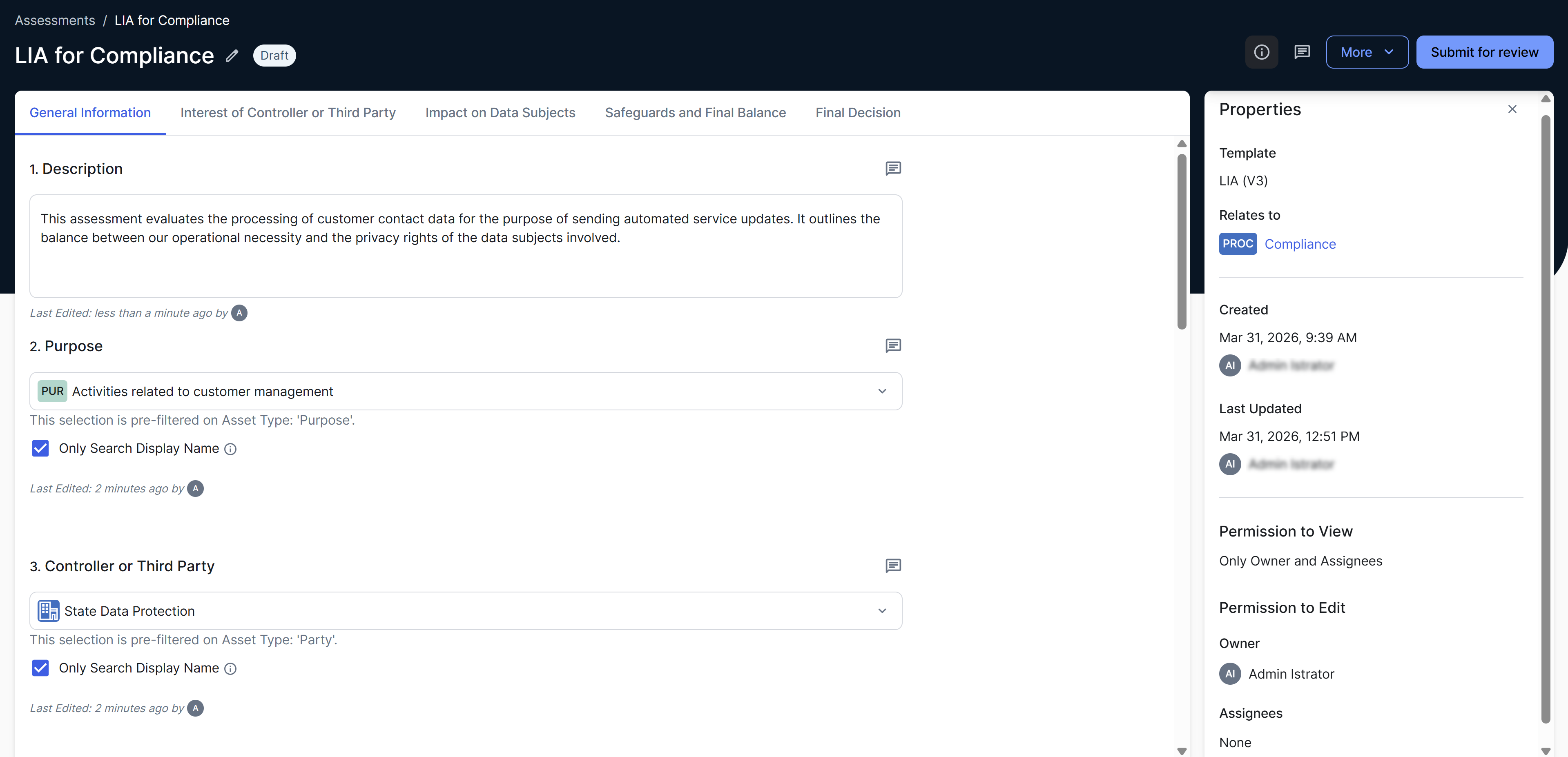
Working on a draft assessment
When an assessment is in Draft status, you can perform the following actions, depending on the template used in the assessment and your role.
| Action |
Result |
|---|---|
| Renaming | Rename the assessment by clicking  next to the current name. You can rename the assessment only if you are its owner or an Assessments administrator. next to the current name. You can rename the assessment only if you are its owner or an Assessments administrator. |
| Adding images | Add images (BMP, GIF, JPEG, or PNG) in rich text fields to support your responses with visual context, such as charts or screenshots. |
| Uploading files |
Upload files in file upload sections. Tip
|
Resolving edit conflicts
| Option |
Result |
|---|---|
| Replace changes | Replaces their response with yours. |
| Copy answer and refresh |
Replaces your response with theirs but copies your response to the clipboard so you can use it later. After reviewing their response, if you decide to replace it with yours, you can simply paste your copied response. The Copy answer and refresh is shown instead of Refresh page when responses can be copied to the clipboard, such as for date pickers, number fields, and all types of text boxes. |
| Refresh page |
Replaces your response with theirs. The Refresh page button is shown instead of Copy answer and refresh when responses can't be copied to the clipboard, such as for checkboxes, radio buttons, asset pickers, and user pickers. You can, however, edit these types of responses again after clicking Refresh page. |
Assessment properties
The Properties sidebar contains the following fields.
| Field |
Description |
|---|---|
| Template | Template used in the assessment. |
| Relates to | Assessed asset, that is, the asset for which the assessment is conducted, along with the asset description (if available). This field is hidden if no asset was selected. |
| Created | Time stamp when the assessment was created. |
| Last Updated | Time stamp when the assessment was last updated. If the assessment was never updated, the Last Updated field shows the same value as the Created field. |
|
Owner |
User who created or currently owns the assessment. |
| Permission to View | Types of users who can view the assessment, for example, Everyone or Only Owner and Assignees. |
| Permission to Edit | Users who can edit the assessment. |
|
Assignees |
Names of the users who are assigned to the assessment. |
Post-submission actions
After an assessment moves to Completed or Submitted status, additional buttons become available, depending on the status and the template used in the assessment.
| Button |
Result |
|---|---|
| Open the Review Asset |
Opens the Assessment Review asset page. If the Assessment Review asset is deleted, the assessment status still remains Submitted. |
| Conduct [template for the follow-up assessment] Assessment |
Creates a follow-up assessment. This button is shown only if the template used in the current assessment includes a Decision field and the predefined scoring threshold is met. |