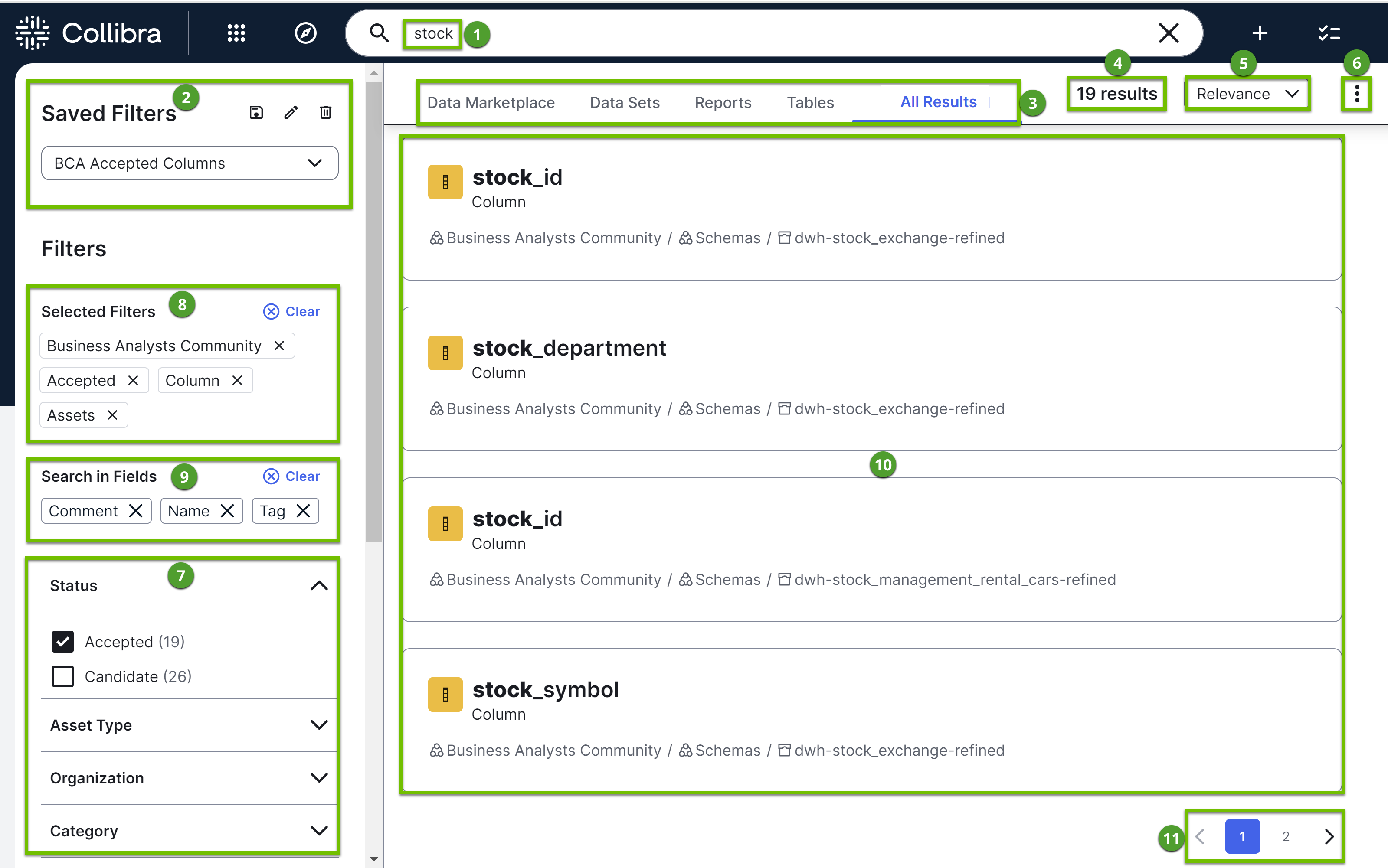
The following table describes the various sections shown on a search page.
| No. | Description |
|---|---|
| 1 |
Your search text, which you can edit. |
| 2 |
Saved Filters: A drop-down list of search filters, showing the filter currently applied. By default, no search filter is applied. The drop-down list contains filters you created and those shared with you.
It is possible that you or another user created a search filter that includes a field or facet that no longer exists in your Collibra environment. When this happens, the unavailable field or facet is highlighted to enable you to identify and remove it from the search filter. Unavailable fields and facets are ignored in search queries.
|
|
3 |
|
| 4 | Total number of results. |
| 5 | Sorting criterion to change the order in which the results appear. |
| 6 | Option to change the number of results shown on each page. |
| 7 | Facet pane, which is a dynamically generated collection of available filters to:
The facet pane is shown only if a search produces results. If you select the Data Marketplace tab, the filters in the facet pane change depending on the facet configuration. The Search in Fields filter, however, is always shown. While most searches are performed against assets, the Category filter in the facet pane can be helpful to search for non-assets, such as communities or domains, or to limit the results to only assets. The common category options available are assets, users, domains, communities, and user groups. |
| 8 |
Selected Filters: Filters you selected in the facet pane. |
| 9 |
Search in Fields: Fields you selected in the facet pane. |
| 10 |
Results that match your search. The fields shown in the search results depend on the search result field configuration. If the text in a field is long, the text is trimmed when shown in a search result. Additionally, in the definition field in a search result, only a portion of the text is shown, including the part that matches your searched text. To open an asset in a new tab or to see the workflows available for an asset, hover your pointer over the asset in the search results, and then click |
| 11 | Page numbers to navigate the search results. |

 edits the name, description, and visibility settings of the filter.
 deletes the filter.
  .
.