> For the complete documentation index, see [llms.txt](https://docs.collibra.com/llms.txt). Markdown versions of documentation pages are available by appending `.md` to page URLs; this page is available as [Markdown](https://docs.collibra.com/data-quality-self-hosted/admin-configuration/admin-console/user-management/ad-security/ad-and-ldap-security-settings-overview.md).

# AD and LDAP Security Settings Overview

You can configure security settings from User Management in the left navigation panel.

## Prerequisites

* You have admin permissions (ROLE\_ADMIN) assigned to your User Profile.
* You have the ability to look at (or get information from) attributes on User and Group LDAP objects. This can be done through CLI, using ldapsearch or through an LDAP object browser.

## Configure Security Settings for Active Directory and LDAP

This section describes how to configure security settings for the Active Directory and LDAP connection types.

![](https://4121921244-files.gitbook.io/~/files/v0/b/gitbook-x-prod.appspot.com/o/spaces%2FWCrP7Albs8DfJjIQxUxw%2Fuploads%2Fgit-blob-d8a13ae03cd68c78ea4c2addf666ed4e94e3ae52%2Fdq-active-directory-configuration.png?alt=media)

{% hint style="info" %}
You must add specific script settings in owl-env.sh or ConfigMap when configuring LDAP and Active Directory. For more information, go to [Configuring LDAP settings](/data-quality-self-hosted/admin-configuration/admin-console/user-management/ad-security/configuring-ldap-settings.md).For information about mapping an AD Group to a Collibra DQ role, go to [AD Group to Role Mapping Overview](/data-quality-self-hosted/admin-configuration/admin-console/user-management/ad-security/ad-group-to-role-mapping/ad-group-to-role-mapping-overview.md).
{% endhint %}

For information about configuration settings for Active Directory and LDAP, select the applicable tab below.

{% tabs %}
{% tab title="Active Directory" %}

### Configure Active Directory Settings

Configure security settings for Active Directory by navigating to User Management, in the left navigation panel, and selecting **AD Security**.

The following table shows the available input fields for the Active Directory connection type.

{% hint style="info" %}
An asterisk (\*) next to a setting represents a required input field.
{% endhint %}

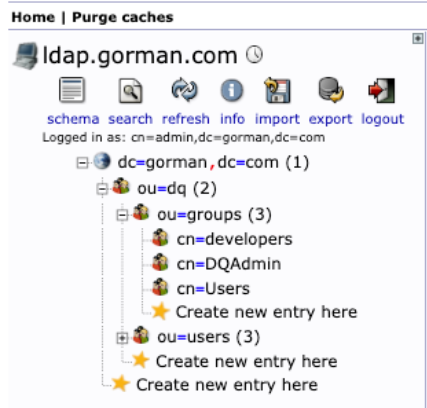
<table><thead><tr><th width="152">Setting</th><th>Description</th></tr></thead><tbody><tr><td>Connection Type</td><td>Select <strong>Active Directory</strong> from this dropdown.</td></tr><tr><td>Page Size</td><td>Set a value greater than 0 to control query page size.</td></tr><tr><td>Host*</td><td>Hostname or URL of your LDAP or LDAPS server, for example, ldap://12.345.678.90.</td></tr><tr><td>Port*</td><td><p>Port to connect to your LDAP or LDAPS server.</p><div data-gb-custom-block data-tag="hint" data-style="info" class="hint hint-info"><p>The default ports are <strong>389</strong> for LDAP and <strong>636</strong> for LDAPS.</p></div></td></tr><tr><td>Base Path*</td><td><p>Base path configured for LDAP.</p><p>The value entered is the base domain information and the format is usually <strong>DC=xxxx,DC=com</strong>.</p></td></tr><tr><td>Group Search Path</td><td><p>Organizational Units where the Groups are located. It is based on the LDAP setup.</p><p>The value entered is the domain object path where the groups are located; for example, <strong>OU=OwlGroups,OU=Groups</strong> (this value is combined with the Base Path to look for groups).</p><p><img src="https://4121921244-files.gitbook.io/~/files/v0/b/gitbook-x-prod.appspot.com/o/spaces%2FWCrP7Albs8DfJjIQxUxw%2Fuploads%2Fgit-blob-3ea68dde1e3056e5a73ec80e9e63cd0814a4af25%2Fdq-purge-caches-role-mapping.png?alt=media" alt="" data-size="original"></p><div data-gb-custom-block data-tag="hint" data-style="success" class="hint hint-success"><p>You can use a wildcard in this field to limit the search results. For example, to see only the groups where the common name starts with "Collibra", enter <strong>cn=Collibra*</strong> in the Group Search Path field. You will now see only groups that start with the name "Collibra" (CollibraPublic, CollibraAdmin, etc.).</p></div><div data-gb-custom-block data-tag="hint" data-style="info" class="hint hint-info"><p>After Group Search Path is configured, it is recommended that you restart the Collibra DQ web application.</p></div></td></tr><tr><td>Domain</td><td><p>The domain name used to signify when non-local users log in.</p><div data-gb-custom-block data-tag="hint" data-style="info" class="hint hint-info"><p>This field applies only to Active Directory configurations.</p></div></td></tr><tr><td>Bind User</td><td>DN of an admin user that is used for authentication; for example, admin@collibra.com.</td></tr><tr><td>Bind Password</td><td>Password of an admin user for the bind account.</td></tr></tbody></table>
{% endtab %}

{% tab title="LDAP" %}

### Configure LDAP Settings

Configure LDAP security settings by navigating to User Management, in the left navigation panel, and selecting **AD Security**.

The following table shows the available input fields for the LDAP connection type.

{% hint style="info" %}
An asterisk (\*) next to a setting represents a required input field. A restart of the Collibra DQ web application may be needed for values to take effect.
{% endhint %}

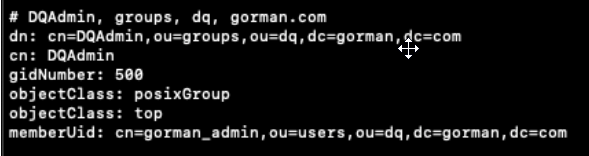
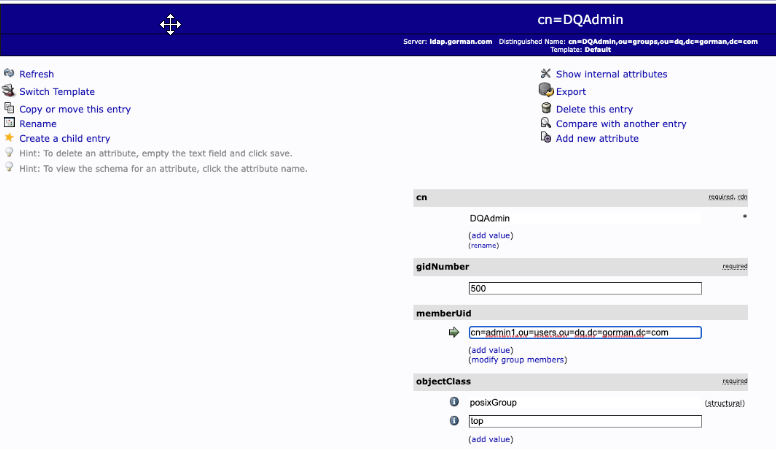
<table><thead><tr><th width="152">Setting</th><th>Description</th></tr></thead><tbody><tr><td>Connection Type</td><td>Select <strong>LDAP</strong> from this dropdown.</td></tr><tr><td>Page Size</td><td>Set a value greater than 0 to control query page size.</td></tr><tr><td>Host*</td><td>Hostname or URL of your LDAP or LDAPS server, for example, ldap://12.345.678.90.</td></tr><tr><td>Port*</td><td><p>Port to connect to your LDAP or LDAPS server.</p><div data-gb-custom-block data-tag="hint" data-style="info" class="hint hint-info"><p>The default ports are <strong>389</strong> for LDAP and <strong>636</strong> for LDAPS.</p></div></td></tr><tr><td>Base Path*</td><td><p>Base path configured for LDAP.</p><p>The value entered is the base domain information and the format is usually <strong>DC=xxxx,DC=com</strong>.</p></td></tr><tr><td>Group Search Path</td><td><p>Organizational Units where the Groups are located. It is based on the LDAP setup.</p><p>The value entered is the domain object path where the groups are located; for example, <strong>OU=OwlGroups,OU=Groups</strong> (this value is combined with the Base Path to look for groups).</p><p><img src="https://4121921244-files.gitbook.io/~/files/v0/b/gitbook-x-prod.appspot.com/o/spaces%2FWCrP7Albs8DfJjIQxUxw%2Fuploads%2Fgit-blob-3ea68dde1e3056e5a73ec80e9e63cd0814a4af25%2Fdq-purge-caches-role-mapping.png?alt=media" alt="" data-size="original"></p><div data-gb-custom-block data-tag="hint" data-style="success" class="hint hint-success"><p>You can use a wildcard in this field to limit the search results. For example, to see only the groups where the common name starts with "Collibra", enter <strong>cn=Collibra*</strong> in the Group Search Path field. You will now see only groups that start with the name "Collibra" (CollibraPublic, CollibraAdmin, etc.).</p></div><div data-gb-custom-block data-tag="hint" data-style="info" class="hint hint-info"><p>After Group Search Path is configured, it is recommended that you restart the Collibra DQ web application.</p></div></td></tr><tr><td>Domain</td><td><p>The domain name used to signify when non-local users log in.</p><div data-gb-custom-block data-tag="hint" data-style="info" class="hint hint-info"><p>This field applies only to Active Directory configurations.</p></div></td></tr><tr><td>User Search Base</td><td>Base DN where the LDAP users for Collibra DQ are located; for example, <strong>CN=Users</strong>.</td></tr><tr><td>User Search Filter</td><td>When set, this LDAP filter is used to locate users at login. This filter is based on your LDAP configurations.</td></tr><tr><td>Group Search Base</td><td><p>The base DN where all the groups are located.</p><div data-gb-custom-block data-tag="hint" data-style="info" class="hint hint-info"><p>This field applies only to LDAP configurations.</p></div></td></tr><tr><td>Group Search Filter</td><td><p>LDAP filter used to narrow down group objects located under a base DN.</p><p>Default: <strong>(&#x26;(objectclass=group))</strong></p><div data-gb-custom-block data-tag="hint" data-style="info" class="hint hint-info"><p>This field applies only to LDAP configurations.</p></div><p><img src="https://4121921244-files.gitbook.io/~/files/v0/b/gitbook-x-prod.appspot.com/o/spaces%2FWCrP7Albs8DfJjIQxUxw%2Fuploads%2Fgit-blob-d6905f2c666ac7c7892f6584baa6d547aad32549%2Fdq-group-objects-example-role-mapping.png?alt=media" alt="" data-size="original"></p><p><img src="https://4121921244-files.gitbook.io/~/files/v0/b/gitbook-x-prod.appspot.com/o/spaces%2FWCrP7Albs8DfJjIQxUxw%2Fuploads%2Fgit-blob-eb50efeb5f1ad0de6b15ccb492aa959f91711a8c%2Fdq-cn%3DDQAdmin-example-role-mapping.png?alt=media" alt="" data-size="original"></p></td></tr><tr><td>Bind User</td><td>DN of an admin user that is used for authentication; for example, admin@collibra.com.</td></tr><tr><td>Bind Password</td><td>Password of an admin user for the bind account.</td></tr></tbody></table>
{% endtab %}
{% endtabs %}