> For the complete documentation index, see [llms.txt](https://docs.collibra.com/llms.txt). Markdown versions of documentation pages are available by appending `.md` to page URLs; this page is available as [Markdown](https://docs.collibra.com/data-quality-self-hosted/core-concepts/explorer/create-a-dq-job/connect-to-a-data-source.md).

# Connect to a data source

Connect to a [data source](/data-quality-self-hosted/connections/supported-connections.md) to onboard its data and run a DQ job against it. ‌When you expand a datasource in the **Explorer** page, a list of available databases and their associated tables display.

## Creating a DQ job

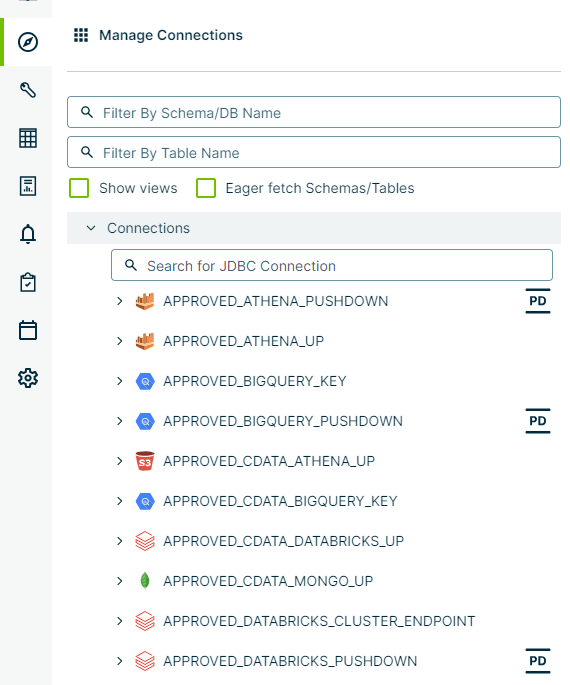
1. Click the <img src="https://4121921244-files.gitbook.io/~/files/v0/b/gitbook-x-prod.appspot.com/o/spaces%2FWCrP7Albs8DfJjIQxUxw%2Fuploads%2Fgit-blob-672bb2e060ed33b709b08eeed08bdfd3dad5812e%2Fcompass-icon.png?alt=media" alt="explorer icon" data-size="line"> **Explorer** in the sidebar menu.\ <i class="fa-chevrons-right">:chevrons-right:</i> The **Manage Connections** treeview expands to show available data sources.

   <div data-gb-custom-block data-tag="hint" data-style="info" class="hint hint-info"><p>When <img src="https://4121921244-files.gitbook.io/~/files/v0/b/gitbook-x-prod.appspot.com/o/spaces%2FWCrP7Albs8DfJjIQxUxw%2Fuploads%2Fgit-blob-5df192e79062b102102bb6b0894b81b2aec92b98%2Fdq-pushdown-icon.png?alt=media" alt="Pushdown icon" data-size="line"> displays to the right of a data source, it indicates that the data source is a Pushdown connection. When the icon is not present, the data source is considered a Pullup connection.</p></div>
2. Select a data source. The options include:

| Data Source             | Description                                                                                                                                                                                                                                                                                                                                                                                                                                        |
| ----------------------- | -------------------------------------------------------------------------------------------------------------------------------------------------------------------------------------------------------------------------------------------------------------------------------------------------------------------------------------------------------------------------------------------------------------------------------------------------- |
| Connections             | The available databases to which you can [connect](/data-quality-self-hosted/connections/supported-connections.md).                                                                                                                                                                                                                                                                                                                                |
| Remote File Connections | The [remote files](/data-quality-self-hosted/connections/supported-connections/supported-remote-files.md) to which you can connect.                                                                                                                                                                                                                                                                                                                |
| Files                   | <p>The local (not temporary) files to which you can connect.</p><p>For this feature to work, you must set the following variable with the applicable location in the owl-env.sh file:</p><p><code>export UPLOAD\_PATH=/\<OWL\_BASE>/owl/upload/</code></p><div data-gb-custom-block data-tag="hint" data-style="info" class="hint hint-info"><p>Local files are only intended for quick tests and not intended for production-scale use.</p></div> |
| Temp Files              | The [temporary files](/data-quality-self-hosted/connections/supported-connections/supported-remote-files/connecting-to-temp-files.md) to which you can connect. The web server removes the temporary files every 24 hours from the local directory.                                                                                                                                                                                                |

3\. Select a database or file.

<i class="fa-chevrons-right">:chevrons-right:</i> The database expands to show available tables.

{% hint style="info" %}
Partitioned tables are not shown in Explorer because of how schema collection is retrieved from Postgres. Instead, Explorer shows each partitioned child table. To run a job on the parent table, generate a job and update the SQL statement to reference the partitioned parent table.
{% endhint %}

{% hint style="info" %}
When you use complex queries, the schema and table cannot be parsed and displayed correctly in the Dataset Manager and Explorer. To resolve this, manually update the schema and table to the correct values by going to **Actions > Edit** in the [Dataset Manager](/data-quality-self-hosted/core-concepts/dataset-directory/dataset-manager.md).
{% endhint %}

4\. Click **Create DQ Job**.

<i class="fa-chevrons-right">:chevrons-right:</i> The Job Creator page opens.

{% hint style="info" %}
We currently don't support the Formatted View tab on the Job Creator page when uploading a remote XML file through a remote file connection, local file, or temp file. The code will still display on the Unformatted View tab.
{% endhint %}

<details>

<summary>Example screenshot...</summary>

<img src="https://4121921244-files.gitbook.io/~/files/v0/b/gitbook-x-prod.appspot.com/o/spaces%2FWCrP7Albs8DfJjIQxUxw%2Fuploads%2Fgit-blob-7a7180c1f58d3d2b2880b25b7bbfbd8da65c634f%2Fdq-explorer-treeview.png?alt=media" alt="explorer treeview" width="50%">

</details>

### Show views

When you select the **Show views** option from the Manage Connections treeview, any virtual tables related to the data source show in the treeview.

{% hint style="info" %}
For data sources where system tables are not available in the Explorer tree (for example, Teradata tables), create a view for each table you need in your data source, then select **Show views** to make the views available in the treeview. You can then create DQ jobs against these views the same way you would against any other table.
{% endhint %}

### Eager fetch schemas and tables

When you select the **Eager fetch Schemas/Tables** option from the Manage Connections treeview, all tables of all public schemas in your data source load together, all at once. While this option has more processing requirements and is thus more expensive, you can use it to retrieve all of the children of a JDBC connection that would otherwise persist for a limited time only.

### Coverage Stats report

The Coverage Stats report opens when you click **Generate Report** from the Manage Connections treeview. The page includes a donut chart showing the percentage of all schemas in the database that are running data quality on them and interactive bar charts showing which data sets are running data quality jobs on a monthly basis.

To see how many new data quality jobs have been added, click one of the following bar charts (the green color represents new DQ jobs and the gray are the existing jobs):

| View    | Description                                                 |
| ------- | ----------------------------------------------------------- |
| **1m**  | Shows new and existing jobs after one month.                |
| **3m**  | Shows new and existing jobs after three months.             |
| **6m**  | Shows new and existing jobs after six months.               |
| **YTD** | Shows new and existing jobs year-to-date.                   |
| **1y**  | Shows new and existing jobs after one year.                 |
| **All** | Shows new and existing jobs for the entire range of months. |

To generate the Coverage Stats for a specific schema, expand the schema in the Explorer and click **Generate Report**. The Coverage Stats report opens for that schema.

### What's next

[Select a scanning method](/data-quality-self-hosted/core-concepts/explorer/create-a-dq-job/select-a-scanning-method.md) to get started.