| Amazon S3 | - An Amazon S3 connection.
- Read and write access on your Amazon S3 bucket.Minimum required bucket permissions... Your connection configuration must specify your S3 bucket name and your intended storage path.
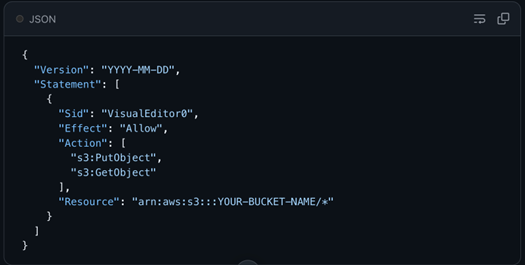 Your bucket's IAM policy must include the following permissions applied to your specific bucket resource:s3:PutObject (Required) Write Access: Allows the system to save break records directly to your S3 bucket. s3:GetObject (Required) Read Access: Allows the system to retrieve records and generate secure, 1-hour presigned URLs for safe viewing.s3:ListBucket (Optional) Admin Access: Allows administrators to view and list the files stored within the bucket. You can authenticate your S3 connection using an S3 Key (s3-key) or an S3 Instance Profile (s3-instance-profile). Once connected, the system will automatically organize your archived break records using the following folder structure: {dataset}/{YYYYMMDD}/{ruleName}/ruleBreaks.csv. Your bucket's IAM policy must include the following permissions applied to your specific bucket resource:s3:PutObject (Required) Write Access: Allows the system to save break records directly to your S3 bucket. s3:GetObject (Required) Read Access: Allows the system to retrieve records and generate secure, 1-hour presigned URLs for safe viewing.s3:ListBucket (Optional) Admin Access: Allows administrators to view and list the files stored within the bucket. You can authenticate your S3 connection using an S3 Key (s3-key) or an S3 Instance Profile (s3-instance-profile). Once connected, the system will automatically organize your archived break records using the following folder structure: {dataset}/{YYYYMMDD}/{ruleName}/ruleBreaks.csv.
|
| ADLS | - An ADLS connection.
- Read and write access on your ADLS bucket.
|
| Azure Blob | - An Azure Blob connection.
- Read and write access on your Azure Blob bucket.
|
| Google Cloud Storage (GCS) | - A GCS connection.
- Editor and Viewer access on your Cloud Storage bucket.
|
 **Settings**.\ :chevrons-right: The **Settings** dialog box appears.
{% endstep %}
{% step %}
Under the Data Quality Job section, select the **Archive Breaking Records** checkbox option, then click the drop-down list.\ :chevrons-right: A list of available external storage options appears.
{% endstep %}
{% step %}
Select the external storage option to which break records will send.
{% endstep %}
{% step %}
Click **Save**.
{% endstep %}
{% step %}
Set up and run your DQ Job.
{% endstep %}
{% step %}
When a record breaks, its metadata exports automatically to your external storage service.
{% endstep %}
{% endstepper %}
**Settings**.\ :chevrons-right: The **Settings** dialog box appears.
{% endstep %}
{% step %}
Under the Data Quality Job section, select the **Archive Breaking Records** checkbox option, then click the drop-down list.\ :chevrons-right: A list of available external storage options appears.
{% endstep %}
{% step %}
Select the external storage option to which break records will send.
{% endstep %}
{% step %}
Click **Save**.
{% endstep %}
{% step %}
Set up and run your DQ Job.
{% endstep %}
{% step %}
When a record breaks, its metadata exports automatically to your external storage service.
{% endstep %}
{% endstepper %}