Tip Be sure to check out the Want my recommendation? Use the AI data recommender course in Collibra University.
Powered by Collibra AI Copilot, the Data Recommender helps data scientists and engineers discover relevant data assets in the Data Catalog, such as datasets and data products, to fill out the critical details of your AI use cases and deployed AI models.
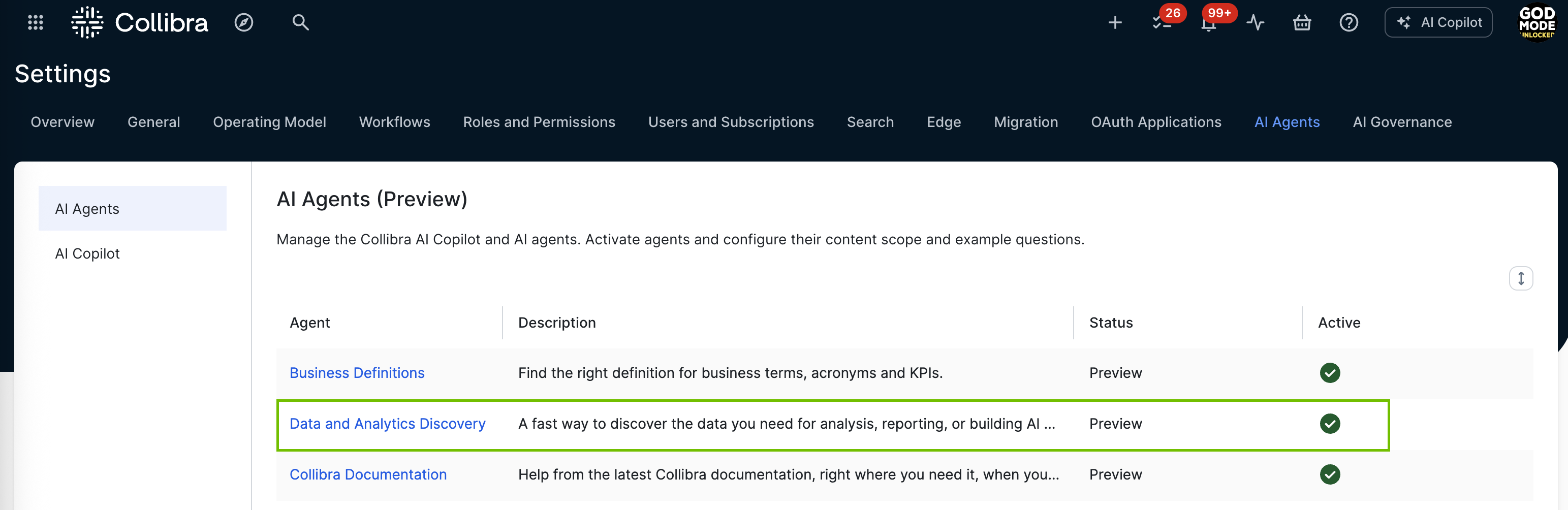
The Data Recommender leverages the Data and Analytics Discovery agent, which finds the data you need for analysis, reporting, and building AI models. You can edit the recommendation filters to limit the scope of recommended assets.
| Design priority | Objective |
|---|---|
| Accelerate AI development | Guide Data Scientists toward pre-approved, high-qulity data products. |
| Promote the reuse of governed data | Recommend data assets that are already enriched with business context, privacy tags, and usage policies. |
| Operationalize data readiness | Enable stewards to proactively link data products to AI use cases, ensuring traceability and compliance from the start. |
Collibra AI Copilot is a chat-based assistant designed to support data citizens. For complete information on Collibra AI Copilot and the Data and Analytics Discovery agent, including how to enable and configure them, go to Collibra AI Copilot in preview.
For information on how we leverage AI in our products, go to the Collibra Trust Site.
Discover data
Depending on the Data recommender configuration in Settings and your user permissions, the Recommend data button is shown on AI Use Case and Deployed AI Model asset pages. Clicking the Recommend data button sends a prompt to Collibra AI Copilot, which returns relevant assets in accordance with the recommendation filter configuration.
Important Collibra AI Copilot uses text similarity to match your prompt with assets in Data Catalog. For example, if you have an AI use case named "Weather forecaster" and a dataset named "Weather data", with the description "Contains historical weather forecasts," Collibra AI Copilot should recommend this dataset. However, if your AI Use Case is named something less descriptive, like "123456," the recommendation results might be poor. In short, assets that fail to meet the algorithm's similarity threshold won't be returned.
Requirements and permissions
The following conditions must be met for the Recommend data button to be shown on relevant asset pages:
- Collibra AI Copilot is enabled for your Collibra environment. For complete information, go to Enable and configure Collibra AI Copilot.
- The Data Recommender widget is included in the respective AI Use Case and Deployed AI Model asset type layouts.
- The Data and Analytics Discovery agent is activated. For complete information, go to Enable and configure Collibra AI Copilot.
- You have the AI Agents > Manage all agents global permission.
- You have the Product Rights > AI Copilot global permission.
The out-of-the-box AI Business User and Data Scientist global roles come with both of these permissions.
Note By default, all users can view all assets in all communities and domains. If, for specific communities or domains, you choose to restrict view permissions to specific users and user groups, be mindful of the possible ramifications. Users who are subject to view permission restrictions are unable to view assets in restricted communities and domains. Collibra AI Copilot will not return assets from communities and domains from which users are restricted.
Steps
- Open the relevant asset page.
- Scroll down to the appropriate section and click Recommend data.
Collibra AI Copilot returns asset recommendations in accordance with the recommendations filter.
What you can do with recommended data
If Collibra AI Copilot returns a supportive asset, such as a report or dataset, you have several options for using it.
| Option | Steps |
|---|---|
|
Add the asset to your data basket. The data basket, also called shopping basket or shopping cart, allows you to add multiple assets from Data Marketplace or Data Catalog to a data basket and request access to those assets in bulk. For complete information, go to Requesting access to data via the data basket. |
On the relevant asset card, click Note To benefit from this option, the data basket feature must be enabled and configured for the relevant asset types. If the data basket is not configured for a specific asset type, the data basket button is not available for assets of that type. |
|
Link the asset to the AI Use Case asset or Deployed AI Model asset. Linking an asset means creating a relation between two assets. The relation is shown on their respective asset pages. |
|
|
Add an asset to a collection. A collection is a group of assets in an organized list, making it easier to access the assets you need. |
On the relevant asset card, click |
 .
. , and then select
 Enable and configure the Data Recommender in Settings
The Data Recommender must be enabled in the Collibra settings.
Prerequisites
- Collibra AI Copilot is enabled for your Collibra environment. For complete information, go to Enable and configure Collibra AI Copilot.
- The Data Recommender widget is included in the respective AI Use Case and Deployed AI Model asset type layouts.
- The Data and Analytics Discovery agent is activated. For complete information, go to Enable and configure Collibra AI Copilot.
- You have a global role with the Product Rights > System administration global permission.
Steps
-
Open the AI Governance settings for editing:
-
On the main toolbar, click
 →
→
 Settings.
The Settings page opens. - On the AI Governance tile, click Data recommender.
The Data recommender settings page opens.
-
On the main toolbar, click
- Enter the required information:
Setting
Description
Mandatory? Activate AI-supported data recommender Ensure that the setting is activated. Yes Asset pages Select the asset types for which the Recommend data button is shown on respective asset pages.
- AI Use Case and child asset types: Selected by default.
- Deployed AI Model and child asset types: Cleared by default.
Yes Asset details for AI Use Case Search for and select the attribute types that you want included in the prompt that is sent to Collibra AI Copilot. This field is included only if you selected AI Use Case in the Asset pages section.
For example, if you select the attribute types Description and Overall Risk Rating, the data recommender will only return assets that have values in the Description and Overall Risk Rating fields on the respective asset pages.
Note If you open the Prompt preview dialog box and select an asset that does not have values for the attribute types that you select here, the prompt preview will not include those attribute types
No Asset details for Deployed AI Model Search for and select the attribute types that you want included in the prompt that is sent to Collibra AI Copilot. This field is included only if you selected Deployed AI Model in the Asset pages section.
Note If you open the Prompt preview dialog box and select an asset that does not have values for the attribute types that you select here, the prompt preview will not include those attribute types
No Recommendation filters Collibra AI Copilot leverages the Data and Analytics Discovery agent to recommend data.
You can edit the filters applied to the agent to refine and limit the content scope that Collibra AI Copilot recommends. You can filter on the following criteria:
- Asset type
- Asset status
- Organization
Click Data Analytics discovery agent to open the agent settings. For complete information, go to AI Agents settings page.
No - Optionally, click Prompt preview, to view the prompt based on your settings.
In the Select an asset drop-down list, you can select an asset to preview what the prompt would be if you clicked Recommend data on the asset page of that asset. - Click Save.
Edit the recommendation filters
Collibra AI Copilot leverages the Data and Analytics Discovery agent to recommend relevant data.
You can edit the filters applied to the agent to refine and limit the content scope that Collibra AI Copilot recommends. You can filter on the following criteria:
- Asset type
- Asset status
- Organization
For example, you can configure filters so that the assets recommended by Collibra AI Copilot are limited to relevant Data Assets from the Data Governance Council organization that have statuses Accepted or Approved.
Important In accordance with the intended functionality, with regard to asset type filtering, we recommend that you filter only on Data Assets.
Requirements and permissions
- You have the Product Rights > AI Copilot global permission
- You have the AI Agents > Manage all agents global permission.
The out-of-the-box AI Business User and Data Scientist global roles come with both of these permissions.
Steps
-
Open the AI Governance settings for editing:
-
On the main toolbar, click
→
Settings.
The Settings page opens. - On the AI Governance tile, click Data recommender.
The Data recommender settings page opens.
-
On the main toolbar, click
- In the Recommendation filters section, click Data and Analytics Discovery agent.
- In the Content scope section, select the asset types, asset statuses, and organizations, to limit the assets that can be recommended to your criteria.Example
- In the Asset types tab, if you select one asset type, then only assets of that type will be eligible for recommendation.
- If you clear all asset types, then assets of all types will be eligible for recommendation. This is the equivalent of selecting all asset types.
- Click Save.
Custom description or definition attributes are not taken into account. However, renamed Description and Definition the out-of-the-box attributes are.
For complete information, go to AI Agents settings page.