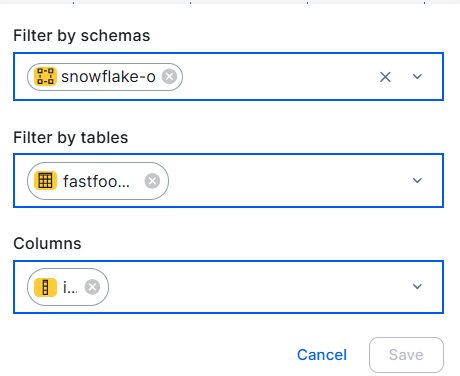
If you have defined the semantic layer, you enrich it by linking the Data Attribute assets to Business Assets and Measure assets from the Semantic Models page. You can do this manually
Even though you can also Column assets to the semantic layer this way, we advise to map the physical and semantic layer from the Semantic Agent page.
Automatically map the semantic layer using Collibra AI
About the semantic mapping Collibra AI feature
Semantic mapping is a Collibra AI feature that helps data stewards map the semantic layer to other assets in Collibra. With semantic mapping, you don't need to manually map the assets.
In the Semantic Models page, the feature can suggest Business terms, Measures, and Columns for Data Attribute assets and creates relations when suggestions are accepted.
Start semantic mapping
Prerequisites
- The Semantic model generation feature is enabled.
- A semantic data model with Data Attribute assets has been defined.
- You have the required permissions.
- Ensure that your environment uses the latest user interface.
Steps
-
On the main toolbar, click
 , then
  Stewardship.
- In the submenu, click Semantic layer.
- Click Semantic Models.
- Open a Data Model.
- Select an approved Data Entity.
The Semantic mapping isn't available for suggested data entities.
The Data Attributes for the Data Entity are shown. The Semantic mapping will run for all data attributes in the data entity, even when the data attributes have not been approved yet. - To map the data attributes with Business asset assets:
- Click Map ® Map business assets.
The Map columns wizard appears. - In the Business terms field, select one or more domains.
- You can select from all domains that can contain the Business Term asset type. For information, go to Asset type assignments.
- You can select up to 10 domains.
- Collibra AI can process a maximum of 1,000 business terms, across all selected domains.
- Click Map.
Collibra AI starts the process of verifying the business terms against all Data Attributes in the Data Entity. The Collibra AI icon is shown while the process runs.
When the process is completed and Collibra AI has found suggestions, the suggested business terms are shown.
- Click Map ® Map business assets.
- To map the data attributes with Measure assets:
- Click Map ® Map measures.
The Map measures wizard appears. - In the Measures field, select one or more domains.
- You can select from all domains that can contain the Measure or KPI asset type. For information, go to Asset type assignments.
- You can select up to 10 domains.
- Collibra AI can process a maximum of 1,000 KPIs and measures, across all selected domains.
- Click Map.
Collibra AI starts the process of verifying the measures against all Data Attributes in the Data Entity. The Collibra AI icon is shown while the process runs.
When the process is completed and Collibra AI has found suggestions, the suggested measures are shown.
- Click Map ® Map measures.
- To map the data attributes with Columns:
- Click Map ® Map columns.
The Map columns wizard appears. - Select the input data through the Database and Schemas fields.
The input data is the data that you want Collibra AI to check. You can select one database and up to 3 schemas in that database. In the next step, you are able to select specific tables from the selected schemas. - Click Next.
The Manage tables step appears showing all tables in the selected schemas. - Refine your selection by selecting the tables to be analyzed from the schemas you previously specified.
- You can select up to 50 tables.
- To select all tables, navigate through each page in the table and select all.
- You can filter tables by Schema, Table name, and Status by hovering over the header and clicking the Search icon
 .
. - Tables with the Missing from Source status aren't shown.
- Click Next.
Collibra AI starts the process of verifying the columns against all Data Attributes in the Data Entity. The Collibra AI icon is shown while the process runs.
When the process is completed and Collibra AI has found suggestions, the suggested columns are shown.
- Click Map ® Map columns.
-
Review the suggested mappings.
-
For approved Data Attributes, the suggestions get the Collibra AI icon and you can approve or reject each item.

-
For Data Attributes that were not approved yet, the suggestions are shown without a Collibra AI icon.
If the suggested mapping is incorrect, click the x icon for the suggestion. The suggestion will disappear.
If the suggested mapping is correct, a relation will be created between the suggested asset and the Data Attribute when the Data Attribute itself gets approved.
-
Tip Unaccepted suggestions generated by the Semantic layer AI agents are automatically removed from Collibra after 60 days.
Manually map the semantic layer
Prerequisites
- A semantic data model with Data Attribute assets has been defined.
- You have the required permissions.
- Ensure that your environment uses the latest user interface.
Steps
-
On the main toolbar, click
 →
Stewardship → Semantic layer.
→
Stewardship → Semantic layer.
The Semantic Models page opens. - Select the data model for which you want to manually link assets.
You can manually link assets only to a Data Attribute that has been approved. - For the Data Attribute you want to map, double-click the respective cell.
You can do this for the Column, Business Asset, or Measure columns.
A dialog box appears. - Select one or more assets.
You can limit the available assets by filtering.For Column assets, you can filter based on Schema and Table.
For Business Asset and Measure assets, you can filter based on Domain.
When you ran the model generation before, the same data used during the generation is selected in the dialog box to keep the focus on the relevant assets.
- Click Save.
- The data attributes are linked to the assets.
- You can also see the connected Data Attributes for Table and Column assets through the Semantic layer widget in the asset page and in the Semantic Assistant overview.